
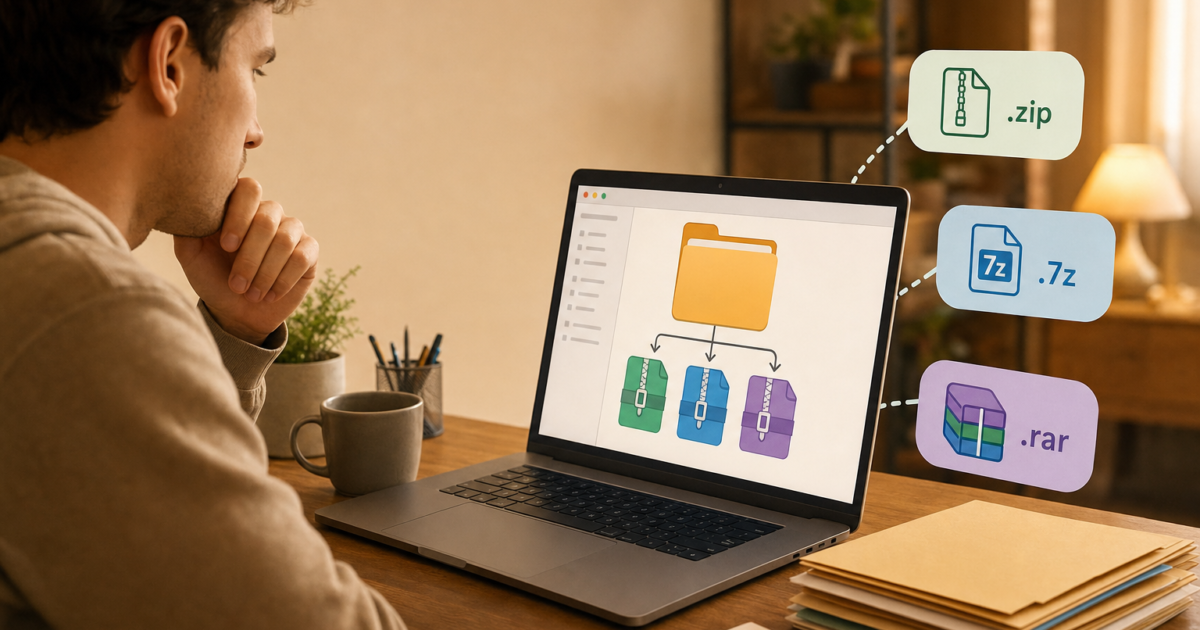
So you’ve got a massive folder of files you need to compress, and you’re staring at a list of tools wondering which one to use. 7-Zip? WinRAR? WinZip? Or just the built-in ZIP option that Windows already has? It’s one of those decisions that sounds simple but gets complicated fast, especially when everyone online seems to have a different opinion.
Here’s the honest answer: there’s no single “best” compression tool for every situation. The right choice depends on what you’re trying to do. You might want to shrink files as small as possible, share them with someone on a Mac, or just zip something up quickly without installing anything. In this guide, we’ll break down how each tool actually performs, what format you should use and when, and which newer tools are worth your attention in 2026.
The Compression Tools We’re Comparing
Before we get into numbers, here’s a quick rundown of the players:
- 7-Zip: A free, open-source archiver that’s been the gold standard for compression ratio for years. Uses the .7z format by default, but also handles ZIP and many others.
- WinRAR: A long-running paid tool (technically “trialware” that nags you to buy it but keeps working) that uses the .rar format. Popular for archive management and recovery features.
- WinZip: A commercial all-in-one suite that’s shifted focus toward productivity and workflow features rather than pure compression muscle. Starts around $30.
- Windows Built-In ZIP: The compression that’s already on your PC, with no install needed. Great for quick tasks, but not the most powerful option.
- NanaZip: A newer alternative built on 7-Zip’s engine but with a modern Windows 11-style interface. Worth knowing about if you want the best of both worlds.
- PeaZip: A free, cross-platform archiver that competes closely with 7-Zip in benchmarks and supports a huge range of formats.
Real-World Compression Results
Numbers first, because that’s what most people actually want to know. Compression benchmarks consistently show the same pecking order across independent tests, and the results line up with what you’d expect based on each tool’s design goals.
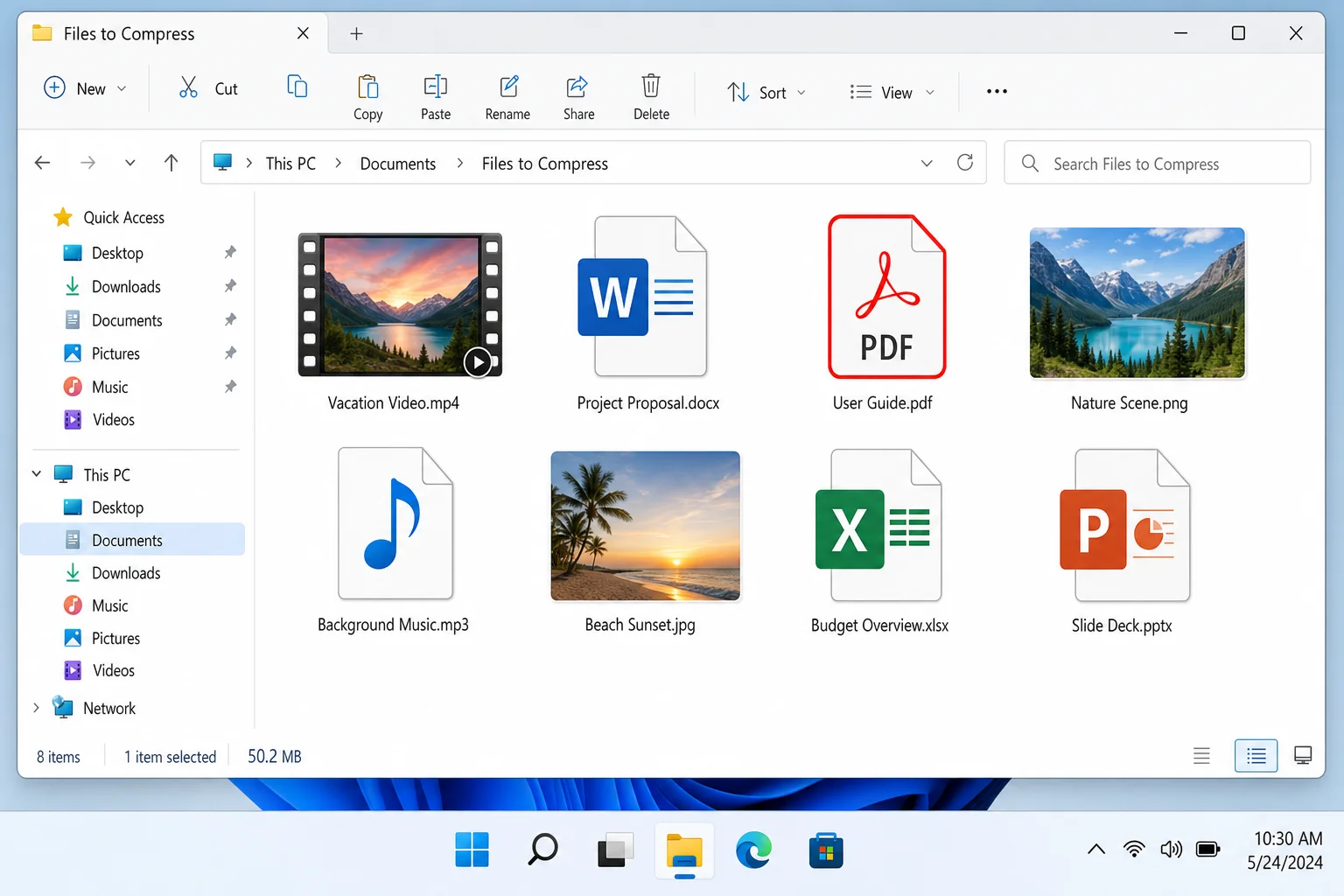
In tests using a mixed dataset of videos, images (including RAW files), documents (PDFs, Office files), and audio files, here’s how the tools stack up by compression ratio:
- 7-Zip (7z format, default settings), typically the smallest output, with compression ratios often 5–10% better than ZIP depending on the data
- WinRAR (RAR format), close behind 7-Zip, consistently better than ZIP
- WinZip, roughly comparable to Windows built-in ZIP when using the ZIP format; its proprietary formats can do better, but ZIP output is similar
- Windows Built-In ZIP, solid baseline, usually around 15–20% size reduction on mixed data
- PeaZip, competitive with 7-Zip in many benchmarks, especially when tuning compression settings
The bottom line: 7-Zip in .7z format gives you the smallest files, full stop. That’s been true for years and it’s still true in 2026. PeaZip is a strong runner-up. WinRAR does well with RAR archives. And Windows ZIP is perfectly fine, just not the most efficient option.
So Which Tool Should You Actually Use?
Here’s where it gets practical. Compression ratio isn’t the only thing that matters, as compatibility, cost, and ease of use all factor in too.
Use 7-Zip When: You Want the Smallest File Size
7-Zip is free, open-source, and consistently tops compression benchmarks. If you’re archiving files for yourself, such as backups, long-term storage, or large transfers, the .7z format is your best bet for squeezing out every last bit of space.
The one catch: anyone you send a .7z file to will need software to open it (7-Zip itself is free, so it’s not a huge ask, but it’s still an extra step). On Windows 11 with the 24H2 update, you can actually open .7z files natively in File Explorer, but don’t count on that for recipients running older setups or macOS.
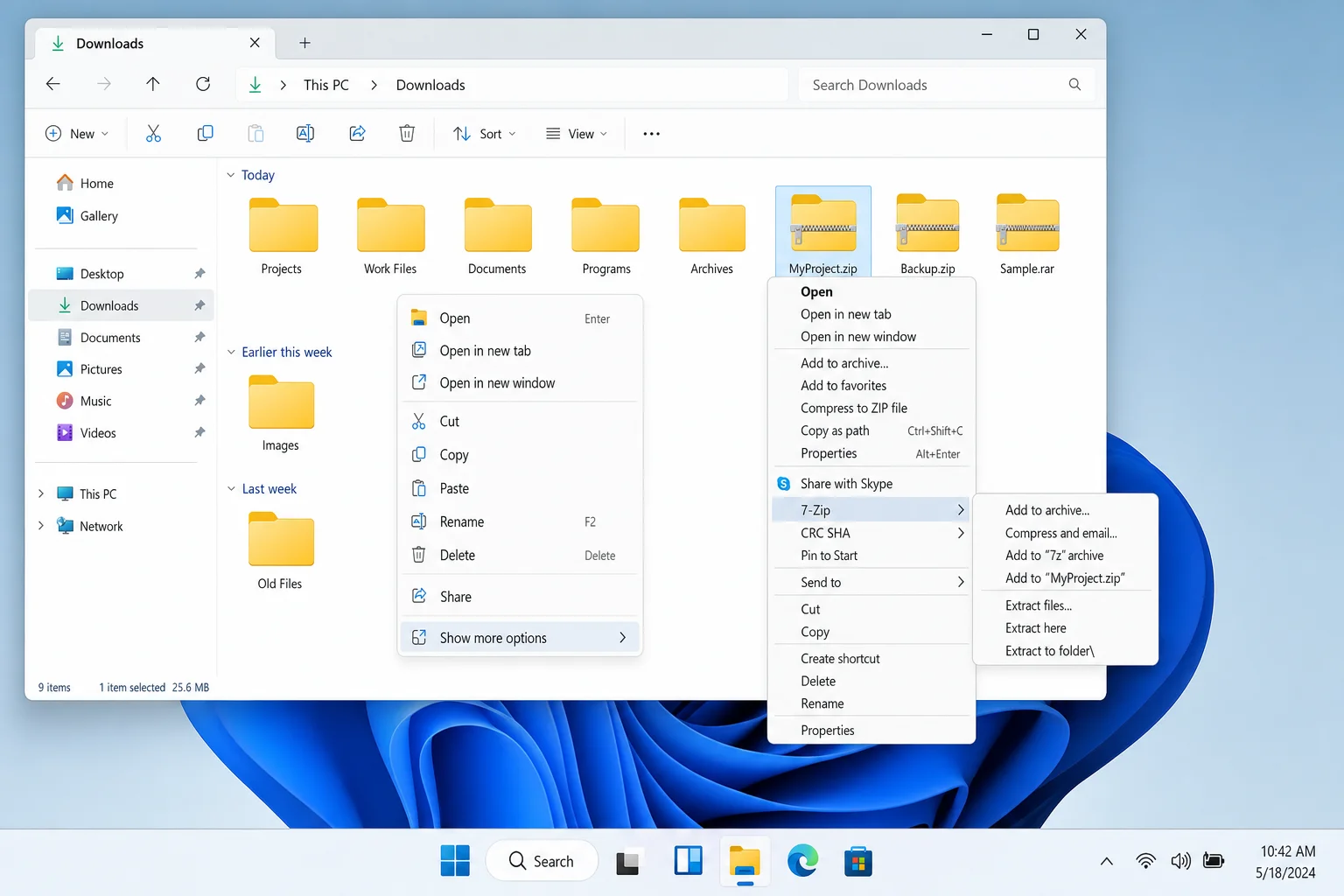
One heads-up for Windows 11 users: after installing 7-Zip, you might not see its options right away when you right-click a file. That’s because Windows 11’s simplified context menu hides older shell extensions. Just click Show more options to find the 7-Zip menu entries.
Use ZIP When: You’re Sharing Files With Other People
ZIP is the universal language of file compression. Windows, macOS, Linux, ChromeOS, they all open ZIP files without any extra software. If you’re emailing a folder to a coworker, uploading files to a web form, or sending something to someone who isn’t particularly tech-savvy, ZIP is the safe, reliable choice every time.
Yes, it’s not the most efficient format. But a slightly larger file that anyone can open beats a perfectly compressed file that leaves your recipient Googling “how to open .7z files.”
Use WinRAR When: You Need RAR Support or Recovery Features
WinRAR still has a loyal following, and for good reason. If you regularly download files from the internet (especially from sites that distribute software or media in multi-part RAR archives), WinRAR handles those seamlessly. It also supports recovery records, a feature that lets you repair a damaged archive, which is something 7-Zip doesn’t offer for its own format.
That said, WinRAR is technically paid software (around $40). It works indefinitely in trial mode, but you’ll see a nag screen every time you open it. If you’re not specifically working with RAR files, 7-Zip does everything WinRAR does and more, for free.
Use WinZip When: You Want an All-in-One Workflow Tool
WinZip has evolved well beyond just compression. In 2026, it’s more of a productivity suite. It integrates with cloud storage, supports encryption, and has a polished interface that some users find easier to navigate than 7-Zip’s more spartan design. If your team uses WinZip across the board and you need those workflow features, it makes sense. But if you just want to compress files, the price tag ($30+) is hard to justify when free tools do the job just as well (or better).
Consider NanaZip or PeaZip for a Modern Experience
If you like what 7-Zip does but wish it looked like it was designed in the last decade, NanaZip is worth a look. It’s built on 7-Zip’s engine, so you get the same compression performance, but with a Windows 11-friendly interface that feels right at home on a modern PC. You can grab it from the Microsoft Store.
PeaZip is another solid free option, especially if you work across platforms (it runs on Windows, macOS, and Linux). Benchmarks show it performing very close to 7-Zip in many scenarios, and it supports over 200 archive formats. If you want something a little more full-featured than 7-Zip’s classic interface without paying for WinZip, PeaZip is a great pick.
How to Compress Files on Windows 11
Not sure where to start? Here’s how to compress files using the most common methods.
Using Windows Built-In ZIP (No Install Needed)
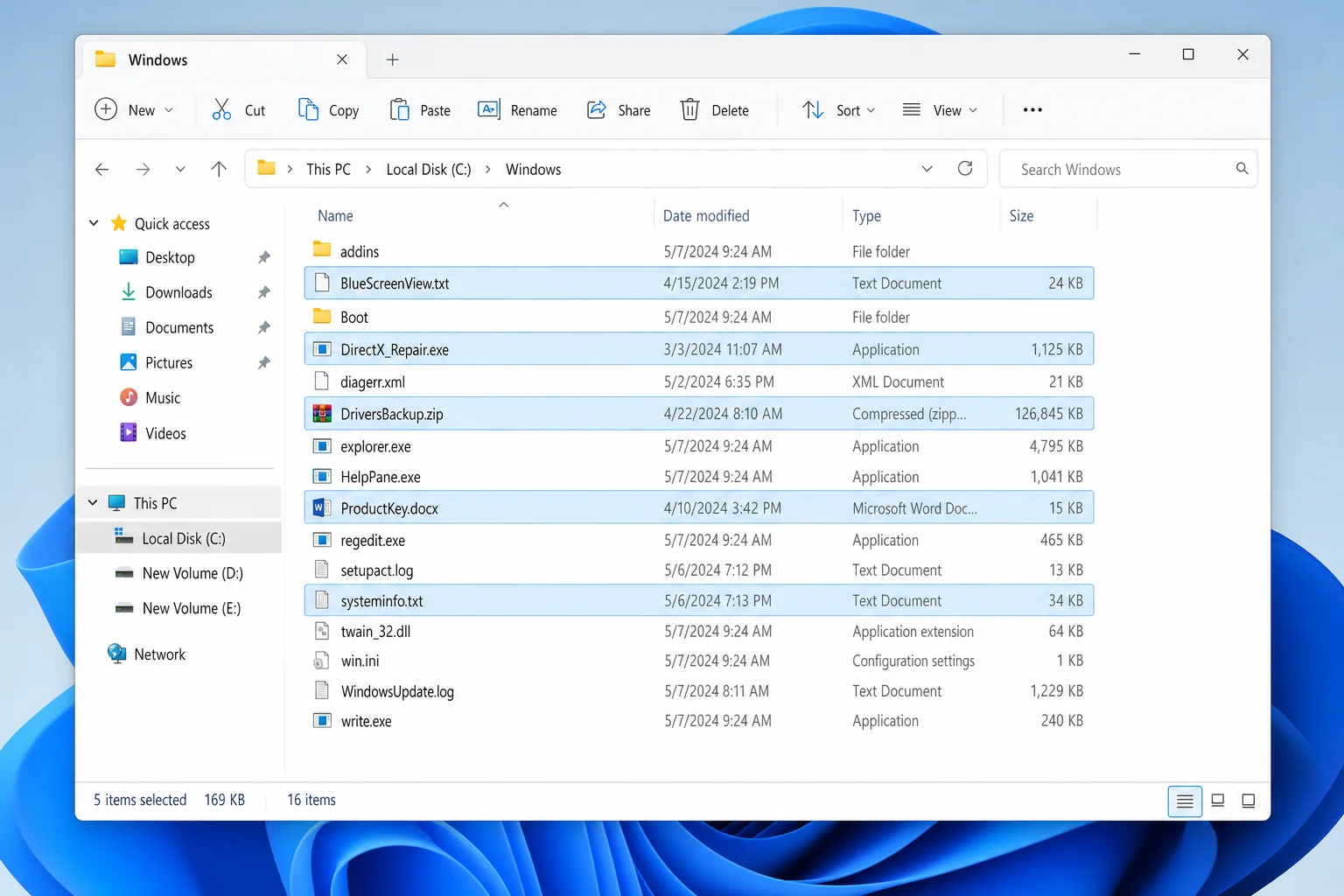
Step 1: Select Your Files
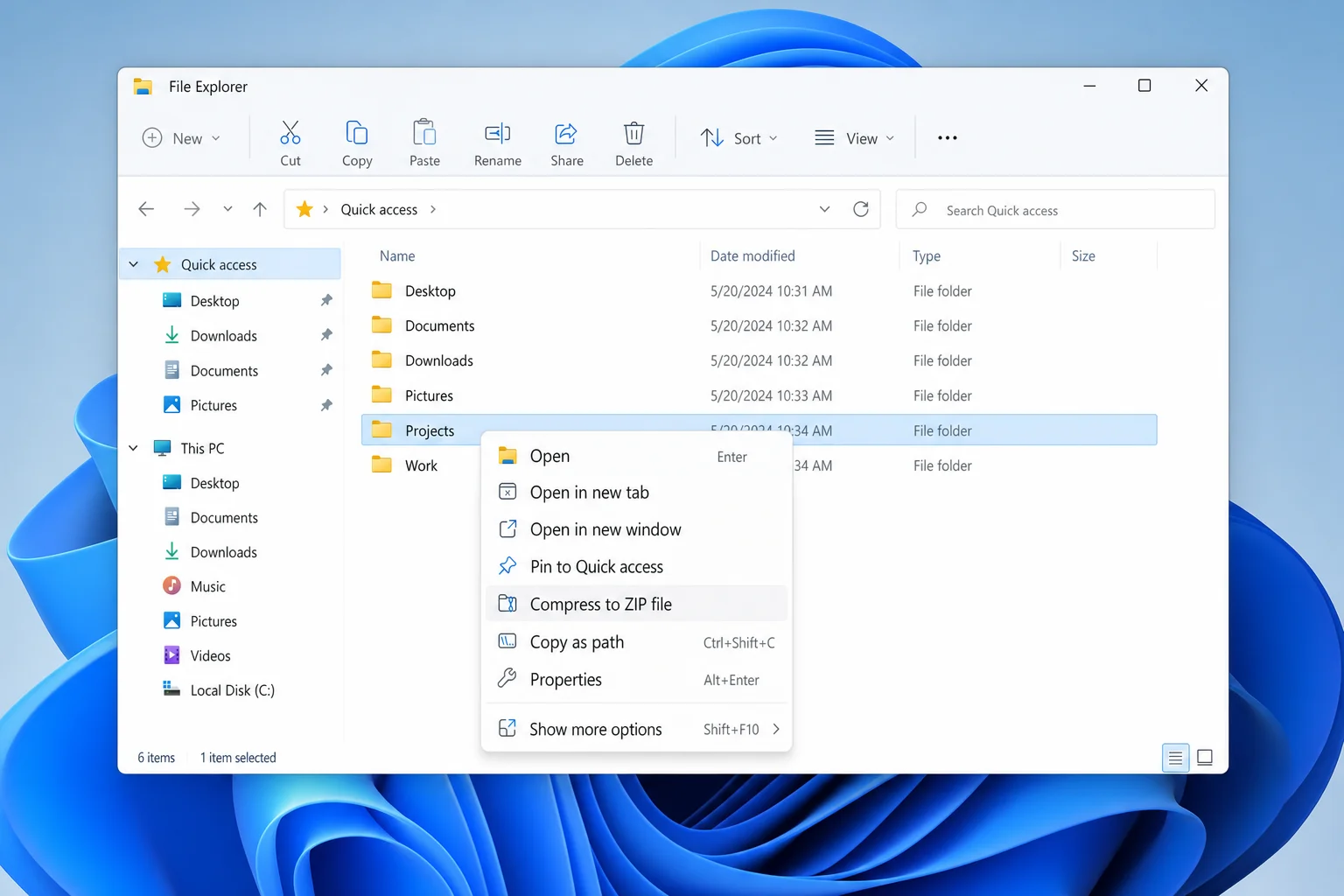
In File Explorer, select the files or folders you want to compress. You can hold Ctrl and click to select multiple items, or press Ctrl + A to select everything in a folder.
Step 2: Right-Click and Compress
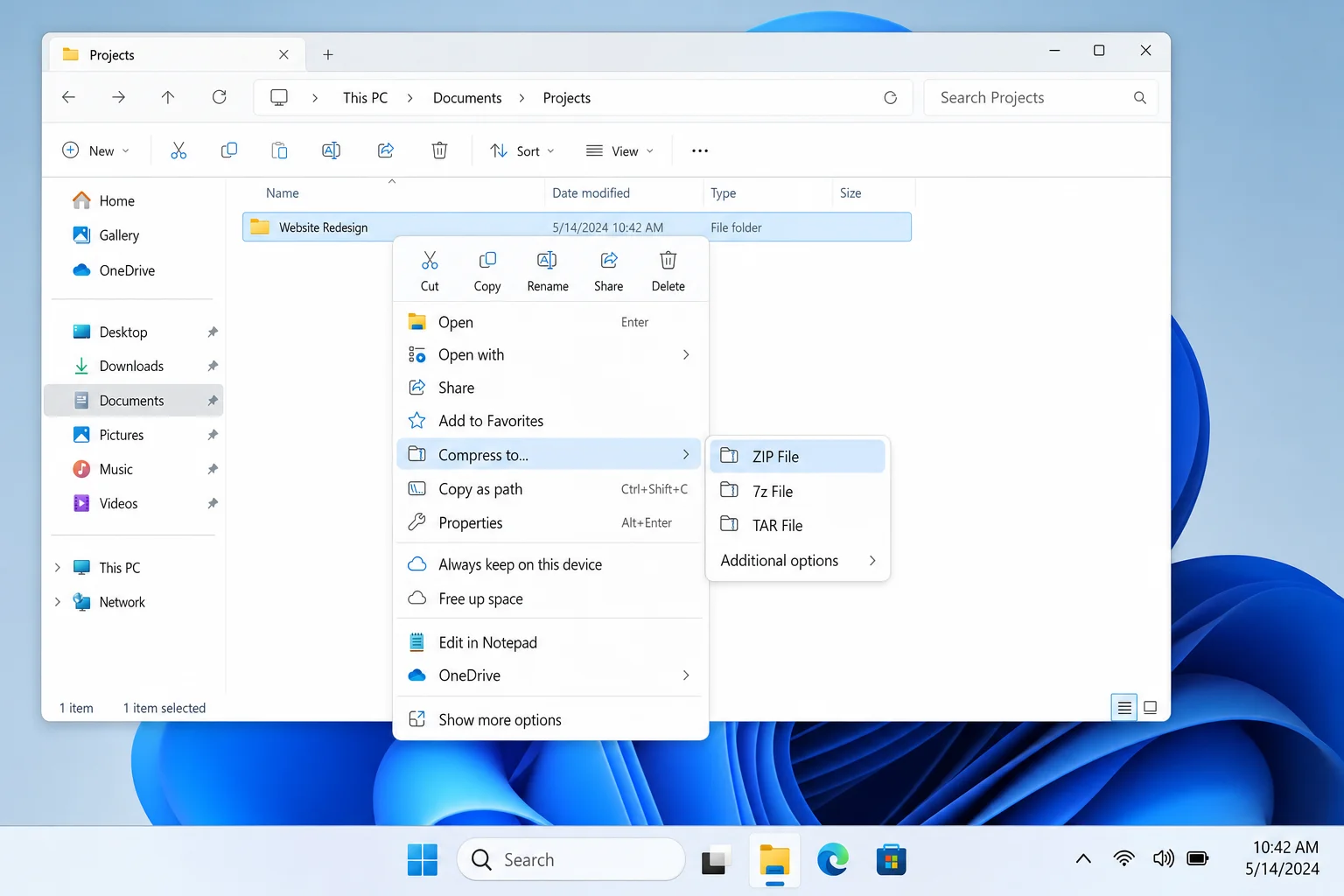
Right-click your selection and choose Compress to ZIP file. Windows will create a new ZIP archive in the same folder right away.
Step 3: Name Your Archive
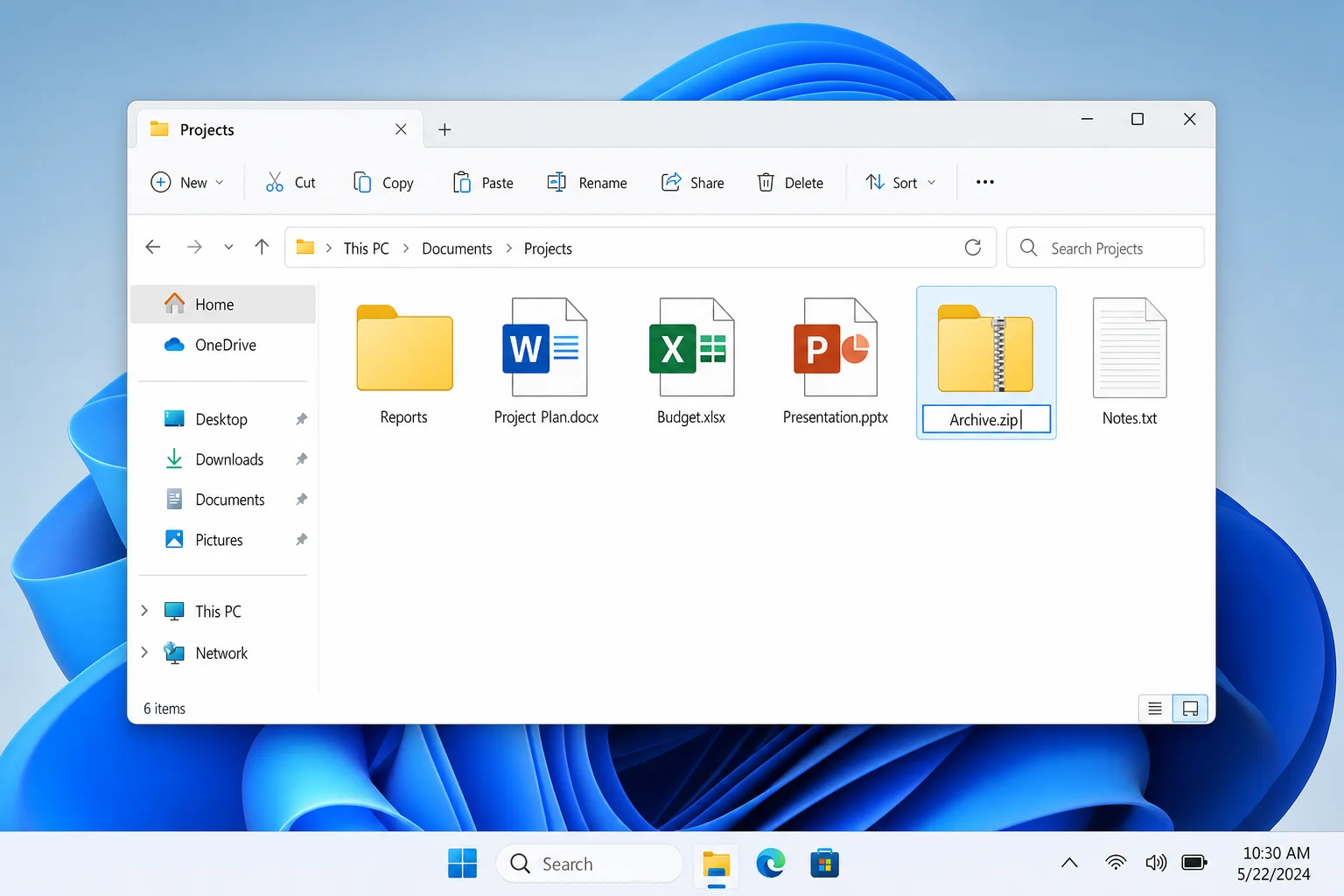
The new ZIP file will appear with the name highlighted and ready to edit. Type a name for your archive and press Enter.
Using 7-Zip for Maximum Compression
Step 1: Download and Install 7-Zip
Head to 7-zip.org and download the latest stable version for your system (grab the 64-bit version for any modern PC). Run the installer, it’s quick and straightforward.
Step 2: Select Your Files in File Explorer
Select the files or folders you want to compress, just like you did with the built-in ZIP method above.
Step 3: Access the 7-Zip Menu
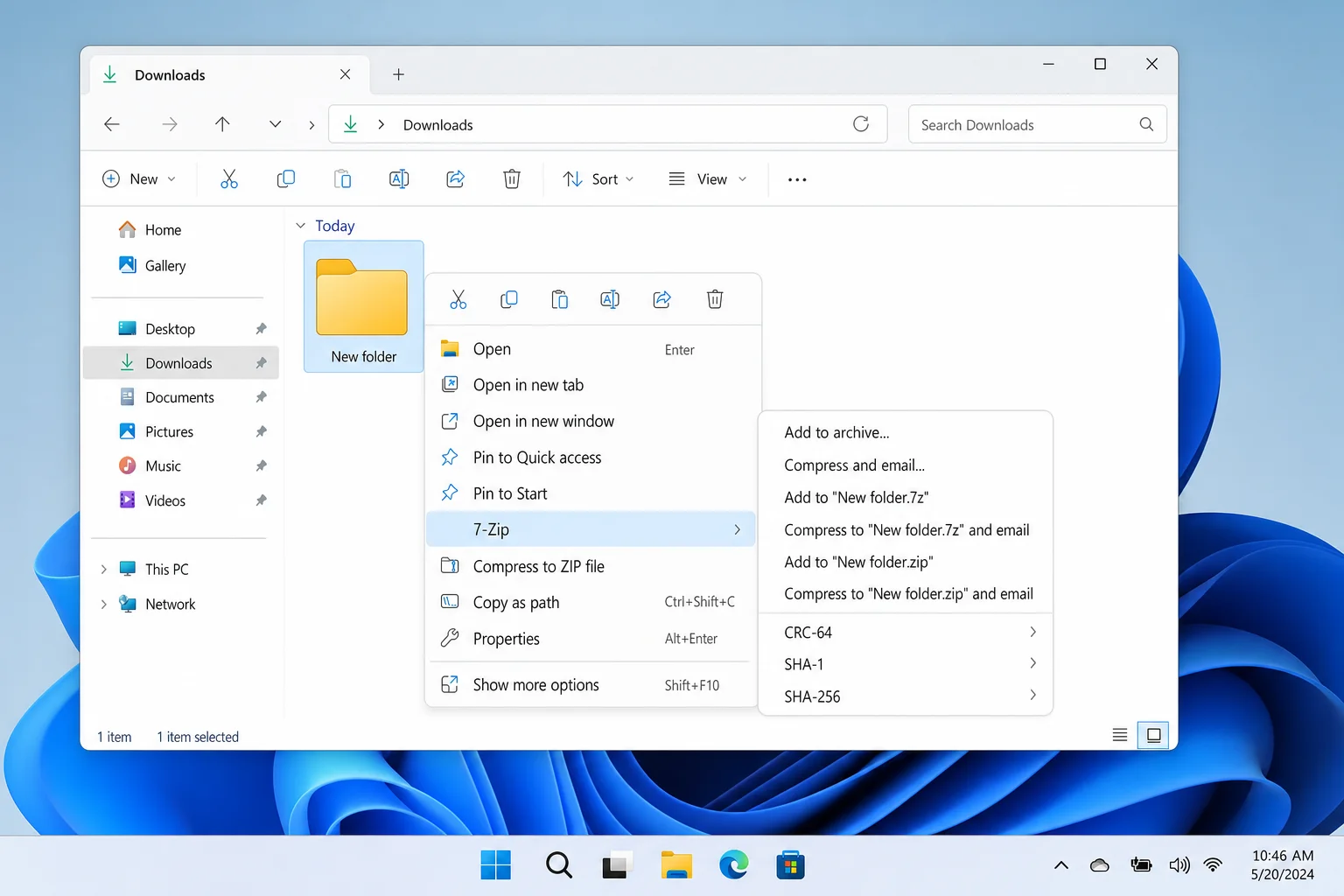
Right-click your selection. In Windows 11, you may need to click Show more options first to see the 7-Zip entries in the context menu.
Step 4: Choose “Add to Archive”
Click 7-Zip > Add to archive. This opens the 7-Zip archive dialog where you can tweak your settings.
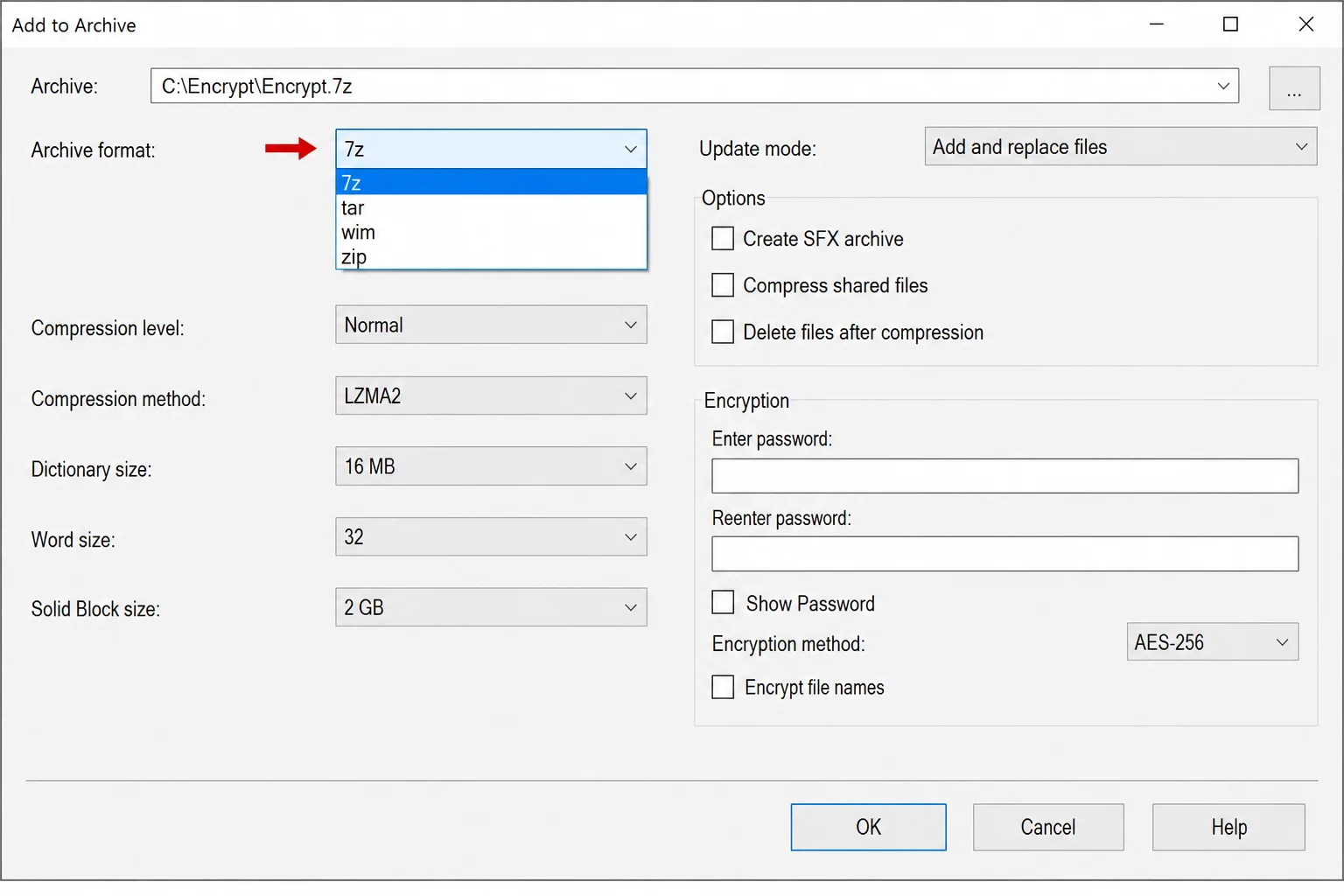
Step 5: Pick Your Format and Compression Level
In the dialog box, you’ll see a few key options:
- Archive format: Choose 7z for the best compression, or zip if you need compatibility with people who don’t have 7-Zip.
- Compression level: Normal is a good balance of speed and size. Ultra squeezes out more space but takes longer.
Click OK and 7-Zip will get to work.
Tips and Troubleshooting
Common Issues
Problem: I don’t see 7-Zip in my right-click menu on Windows 11
This is a super common issue. Windows 11’s new simplified context menu hides older third-party entries. Just right-click, then click Show more options (or press Shift + F10) to get to the classic context menu where 7-Zip shows up.
Problem: Someone can’t open the file I sent them
They’re probably trying to open a .7z or .rar file without the right software. The easiest fix is to re-compress the files as a .zip instead, since everyone can open those. Alternatively, point them to the free 7-Zip download.
Problem: My compressed file is barely smaller than the original
This is totally normal if your files are already compressed formats. Things like MP3s, MP4 videos, JPEGs, and PNGs don’t compress much further because they’re already compressed internally. Compression tools work best on uncompressed data like raw text files, Office documents, and uncompressed images.
Pro Tips
- Don’t bother compressing already-compressed files: Videos, music, and photos are already compressed. You’ll get almost no size reduction and just waste time.
- Use encryption for sensitive files: Both 7-Zip and WinRAR let you password-protect archives with AES-256 encryption. In 7-Zip, just set a password in the Add to archive dialog.
- Split large archives: If you need to send a huge archive in chunks (say, across multiple emails or file upload limits), 7-Zip and WinRAR both let you split archives into smaller parts from the same dialog.
- Consider cloud sharing instead: If your goal is just sending large files to someone, sometimes it’s easier to upload to Google Drive, Dropbox, or OneDrive and share a link, with no compression needed at all.
Quick Comparison: Which Tool to Use
| Tool | Best For | Cost | Formats |
|---|---|---|---|
| 7-Zip | Maximum compression, personal archives | Free | .7z, .zip, and many more |
| Windows ZIP | Quick compression, sharing with anyone | Free (built-in) | .zip only |
| WinRAR | RAR files, recovery features | ~$40 (trial is free) | .rar, .zip, and more |
| WinZip | All-in-one workflow, cloud integration | $30+ | .zip, .zipx, and more |
| NanaZip | 7-Zip performance with a modern UI | Free | .7z, .zip, and many more |
| PeaZip | Cross-platform use, broad format support | Free | 200+ formats |
Wrapping Up
Finally, a clear answer to a question that’s been muddier than it needs to be. If you want the smallest possible file, grab 7-Zip (it’s free and it wins on compression ratio every time). If you’re sharing files with other people and don’t want any headaches, stick with ZIP, as it just works everywhere. And if you’re on Windows 11 and want something that feels more polished than classic 7-Zip, NanaZip is worth a download from the Microsoft Store.
WinZip and WinRAR both have their place, but for most everyday users, the free options get the job done just as well. Save your money and spend it on something more exciting than a file compression license.