
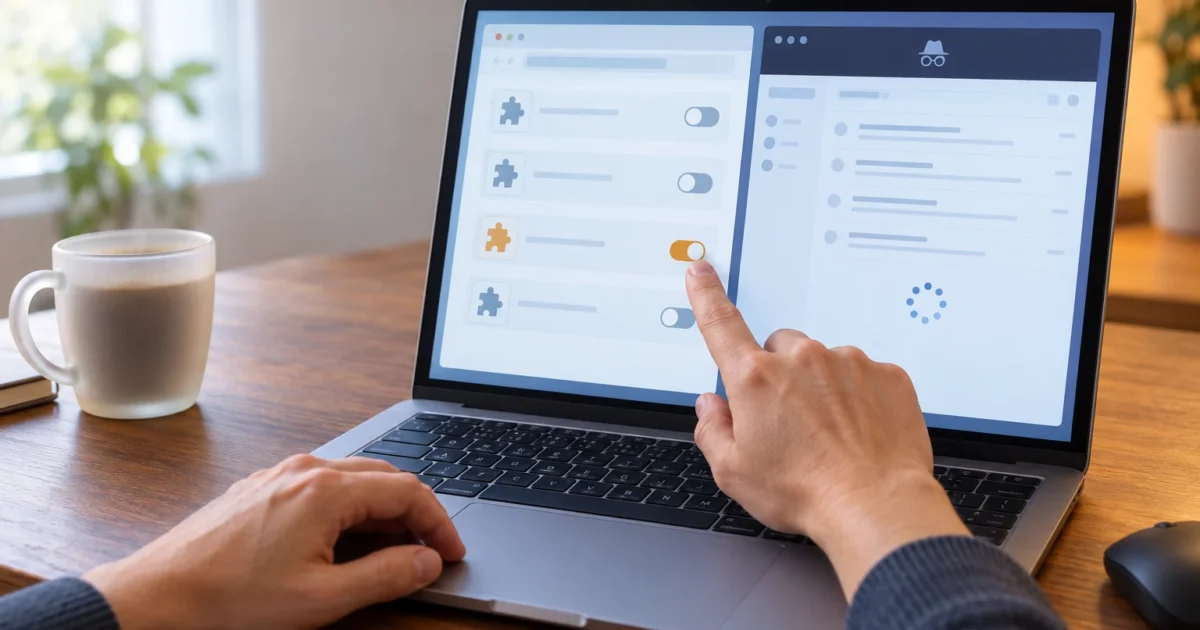
Gmail was fine yesterday, and now the inbox won’t load or the Compose button has a mind of its own. Annoying, right? Gmail Chrome extension conflicts can cause trouble like this, especially after an extension is installed or updated.
The fastest way to investigate is to try Gmail in an Incognito window. Then, in your usual Chrome window, turn off extensions and switch them back on one at a time, reloading Gmail after every change. That second test is what helps you find the likely culprit.
Quick Diagnosis: Is an Extension Involved?
Before changing settings, note the exact problem. Does Gmail stay blank, loop back to sign-in, hide buttons, or fail to show notifications? Pick one action you can repeat after each test, such as opening Compose. Think of it as checking the same light switch each time you change a bulb.
- Open an Incognito window using the shortcut for your computer:
Ctrl + Shift + Non Windows or Chromebook, orCommand + Shift + Non macOS. You should see Chrome’s Incognito indicator. - Enter
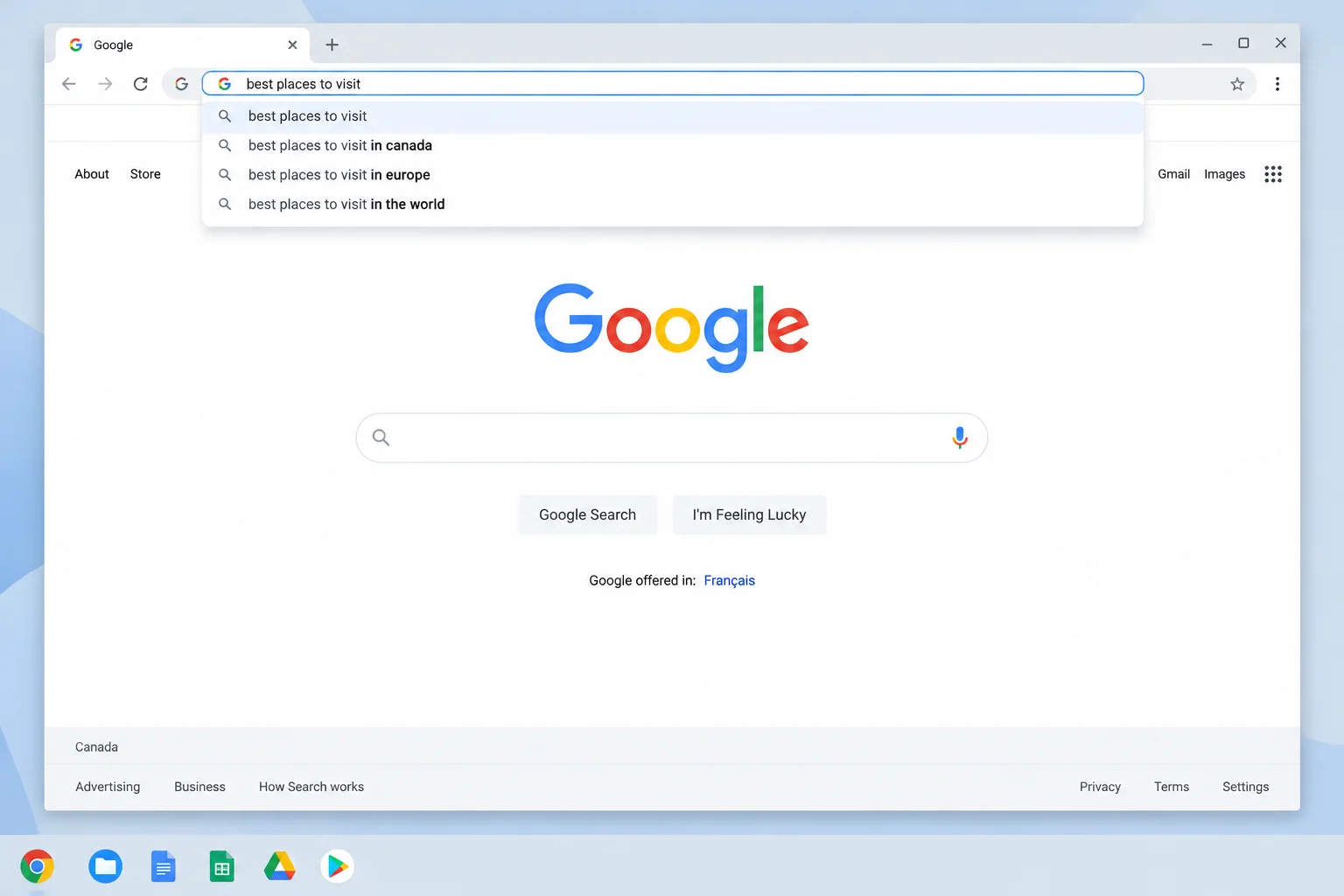
mail.google.comin the address bar. Sign in if needed, then try the action that fails in your usual window. - Compare the result. If Gmail works here, an extension or other data and settings in your usual Chrome profile may be involved. A working Incognito session does not prove an extension caused the problem.
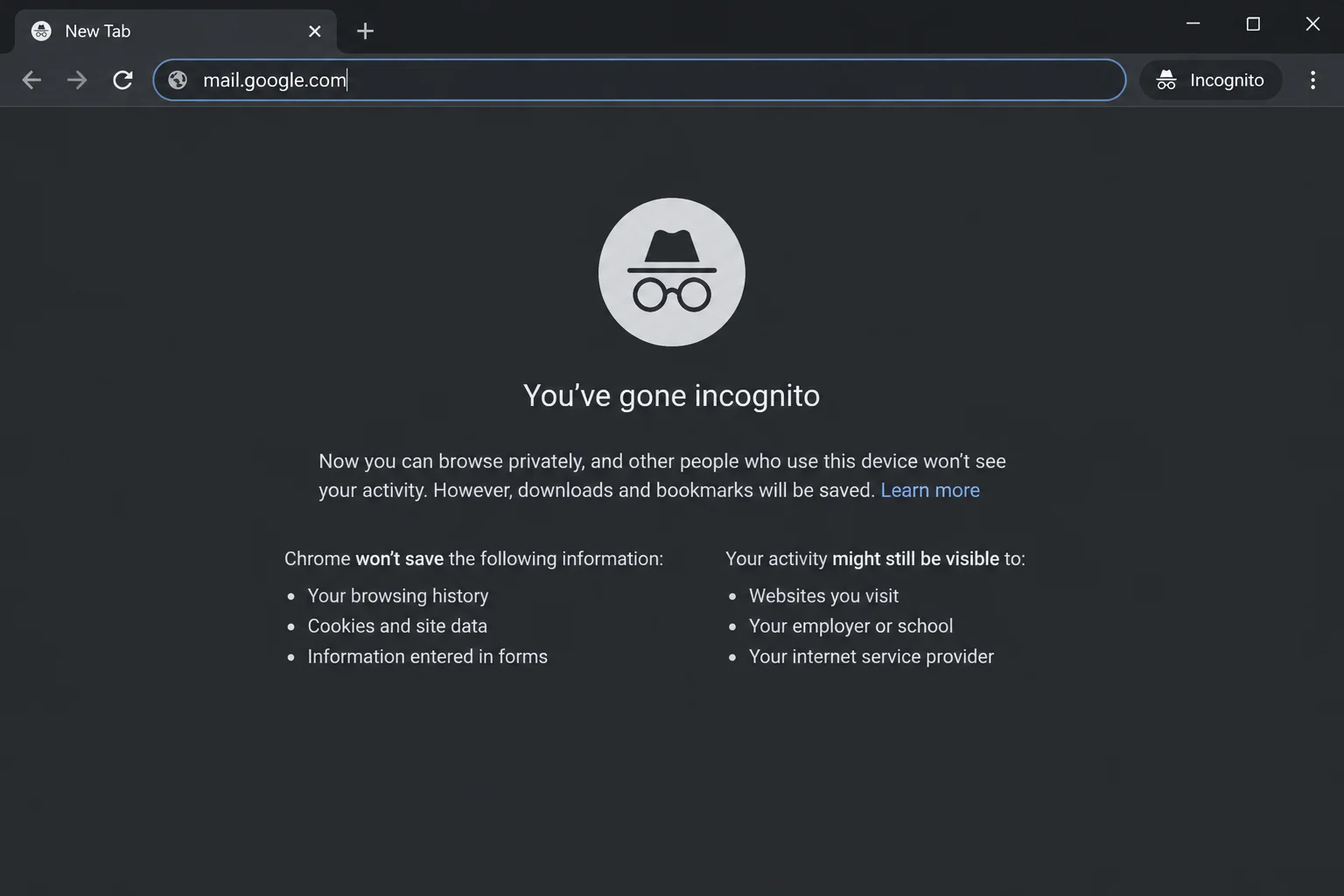
Extensions are normally off in Incognito, but you can allow individual ones to run there. If you have, the test is less useful until you check those permissions. Incognito also uses a separate browsing session, so cookies and site data differ from your normal window.
Signs worth checking: Gmail breaks only in one Chrome profile, the problem began after an extension changed, or buttons and page layout look wrong. None is proof on its own; the repeatable test below is more reliable.
Common Issues and Solutions
Problem: Gmail Works in Incognito but Fails in a Normal Window
Symptoms:
- Gmail opens in Incognito but stays blank or keeps loading in your usual window.
- The same Gmail feature works in one window and fails in the other.
Why it happens: Extensions, saved site data, and some browser settings differ between the two windows. You need a test in your normal Chrome profile to narrow it down.
Fix:
- Return to a normal Chrome window and enter
chrome://extensions/in the address bar. You should see cards for extensions in that Chrome profile. - Turn off every extension using its card’s toggle. Leave the extensions installed for now.
- Return to Gmail and reload the tab. Try the same action you picked earlier.
- If Gmail works, turn on one extension at
chrome://extensions/. - Reload Gmail and repeat the same action. If it still works, turn on the next extension and test again. Keep going until the problem returns.
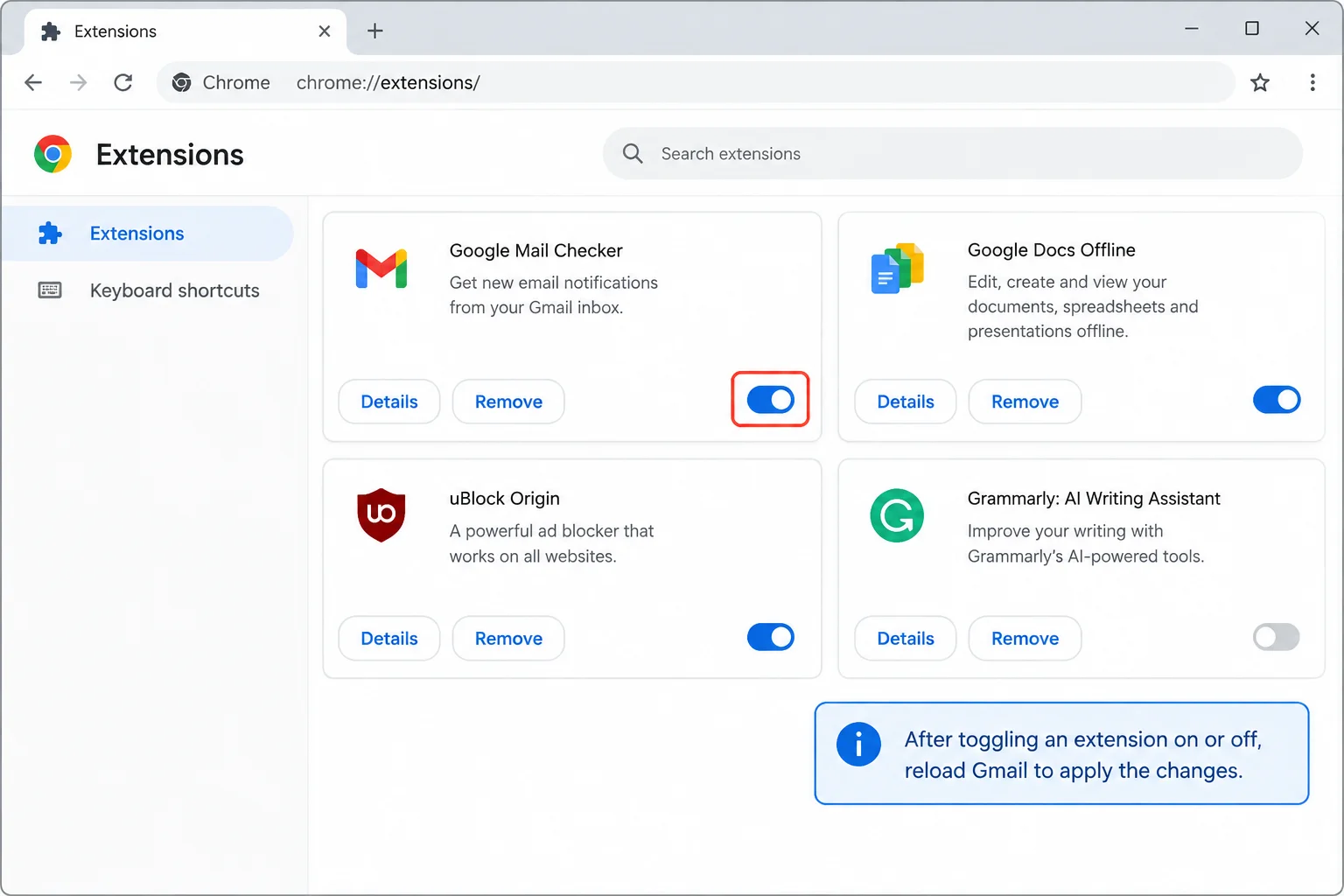
The extension enabled just before the problem returns is the likely conflict. Turn it off once more, reload Gmail, and check that the problem goes away again. That final check helps rule out a coincidence.
Verify: Gmail works with the suspected extension off and the problem returns when it is on. If Gmail fails even with every extension off, go to the non-extension checks below.
Problem: Gmail Is Blank, Stuck Loading, or Looks Broken
Symptoms:
- The inbox is empty even though Gmail appears to be loading.
- Menus, message rows, or buttons are missing or out of place.
Why it happens: Extensions that block content or change web pages can interfere with parts of Gmail’s interface. Ad and content blockers are sensible places to start, followed by privacy and VPN tools. A recent change makes an extension worth checking, but any installed extension can be involved.
Fix:
- Turn off all extensions at
chrome://extensions/. - Reload Gmail and check whether the inbox and controls appear.
- Turn extensions back on one at a time, reloading Gmail after each toggle.
- When the display breaks again, turn that extension off and reload Gmail once more.
Verify: The inbox and its controls stay visible with the likely extension off. If they do, use the update or site-specific options below.
Problem: Compose, Buttons, or Side Panels Act Strangely
Symptoms:
- Typing in Compose lags or suggestions cover your text.
- A button stops responding, or an extra panel overlaps Gmail.
Why it happens: Writing assistants and AI sidebar tools often add controls to pages. Sometimes those controls get in Gmail’s way (a little like two people trying to steer the same shopping cart).
Fix:
- Close any open draft you do not need for the test, then turn off extensions at
chrome://extensions/. - Reload Gmail and open a new draft.
- Test typing, the affected button, or the side panel.
- Re-enable extensions one by one, reloading Gmail and repeating that action after each change.
Verify: The problem stops when the likely extension is off and returns when you enable it again.
Problem: Gmail Keeps Returning to Sign-In
Symptoms:
- You sign in, then Gmail sends you back to a sign-in page.
- Gmail opens in another browser but not in your usual Chrome profile.
Why it happens: A privacy extension can affect the sign-in process. Cookie settings or saved Gmail site data can also be involved, so an Incognito result alone cannot settle this one. Keep in mind that Chrome blocks third-party cookies by default in Incognito, so cookie behavior there is not the same as in your normal window.
Fix:
- Disable all extensions at
chrome://extensions/, reload Gmail, and try signing in again. - If the loop continues, open Chrome Settings > Privacy and security > Third-party cookies. Review the available controls and any site exceptions. The wording and options can vary by Chrome build.
- Check Gmail’s saved data: from a Gmail tab, select the site icon beside the address bar, then Site settings. Look for the site-data control. Before you clear anything, note that clearing Gmail’s site data signs you out, so expect to sign in again.
- Reload Gmail and try once more.
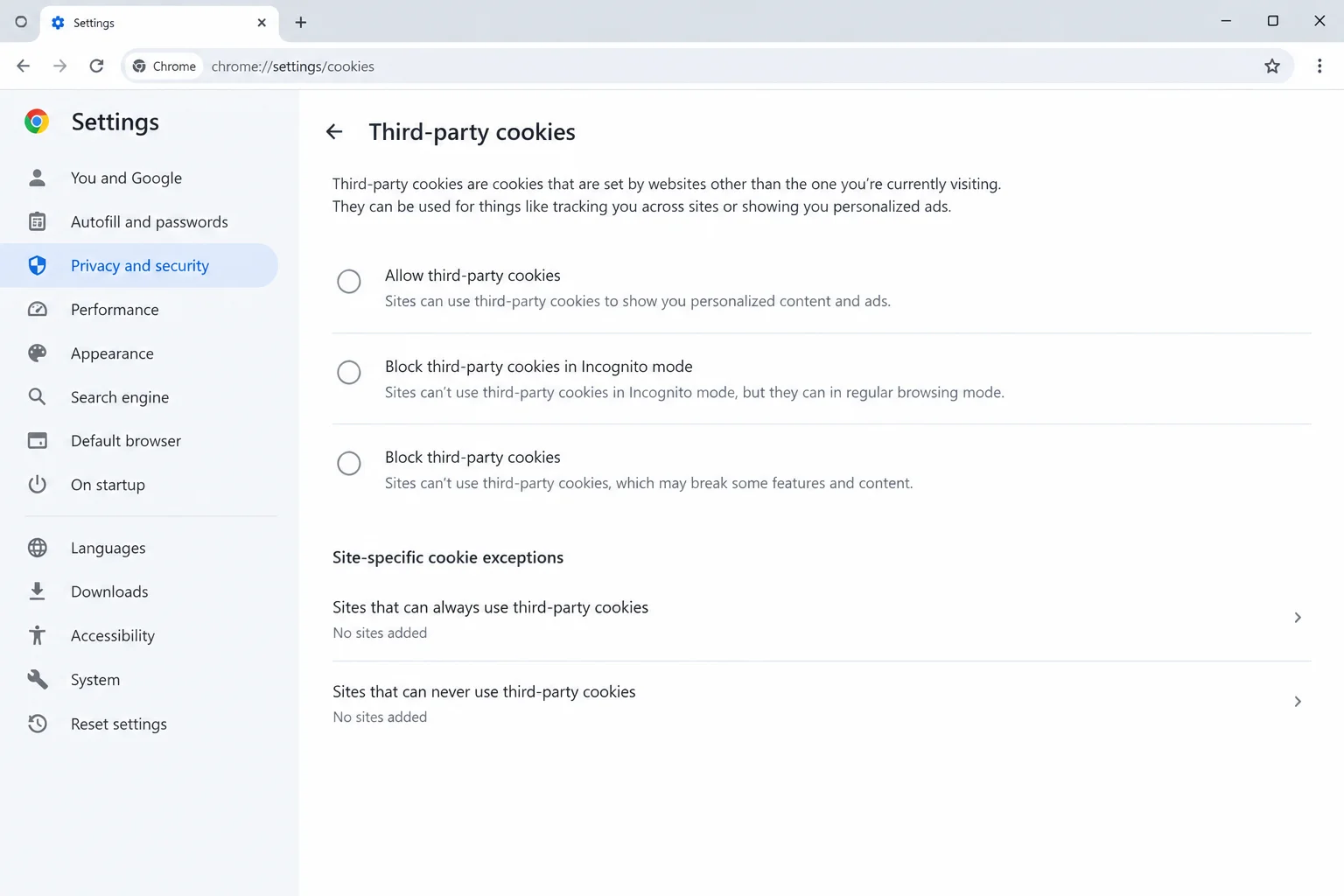
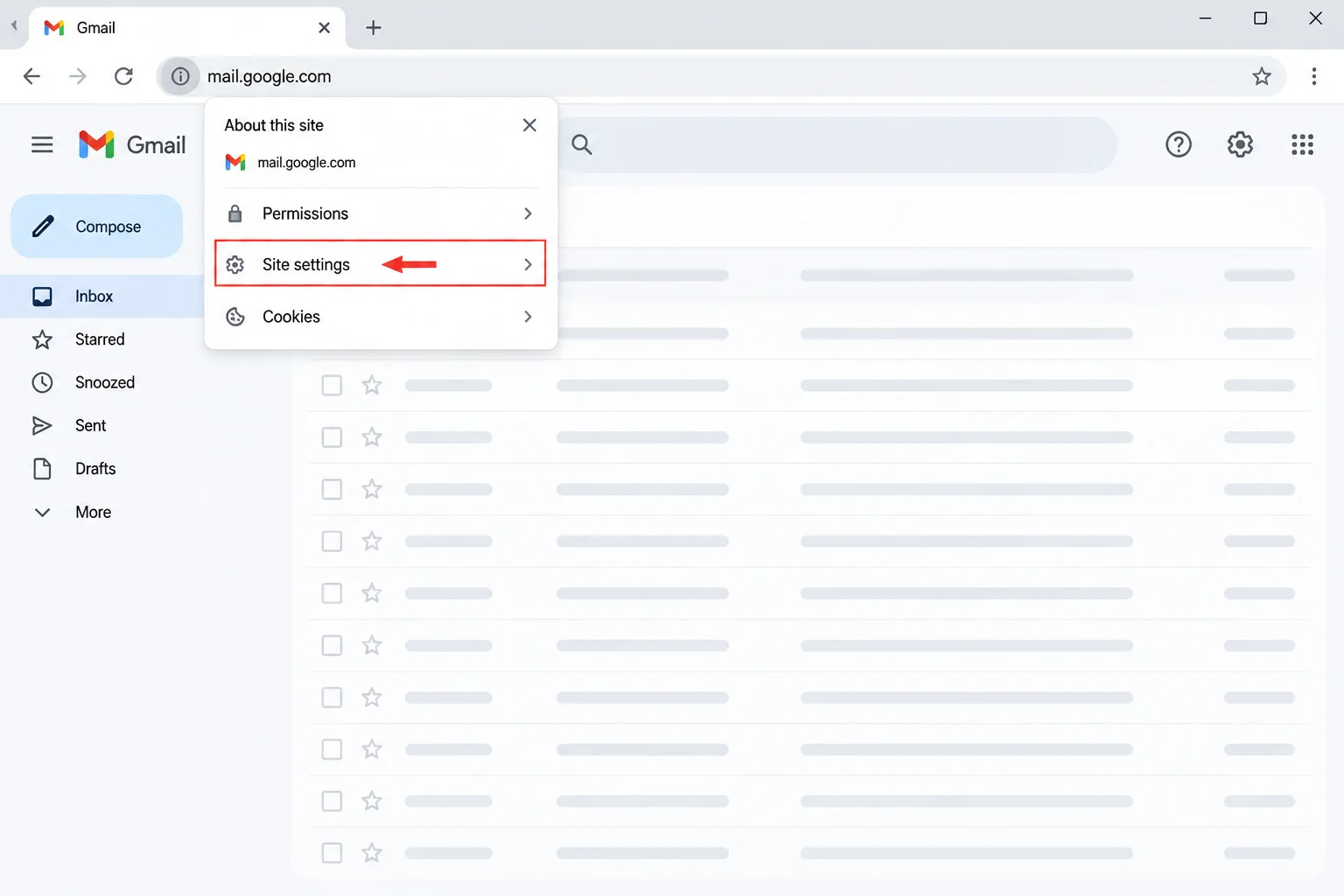
Verify: Gmail opens your inbox and stays there after a reload. If it does not, check for a Chrome update or a wider Gmail problem before changing more settings.
Problem: Gmail Notifications Stop Appearing
Symptoms:
- New mail arrives, but no desktop alert appears while Gmail is open in Chrome.
Why it happens: Gmail’s own notification setting, Chrome’s notification permission for Gmail, or your computer’s notification settings can each stop alerts, with or without an extension involved. Chrome also does not show notifications while you browse in Incognito, so use your normal window for this check.
Fix:
- In Gmail, select Settings > See all settings, scroll to Desktop notifications, and choose New mail notifications on or Important mail notifications on. Save the change.
- From the Gmail tab, select the site icon beside the address bar, then Site settings, and check that Notifications is allowed.
- Check your computer’s notification settings and make sure Google Chrome is allowed to show notifications.
- If alerts still don’t appear, run the all-extensions-off test above and reload Gmail.
Verify: A new message produces a desktop alert while Gmail is open in a normal Chrome window.
Problem: Gmail Still Fails with Every Extension Off
Symptoms:
- The same loading, sign-in, or display problem remains after you disable all extensions and reload Gmail.
Why it happens: The cause may be Chrome, Gmail’s saved site data, your connection, or a Google-side issue. At this point, keep the extensions off while you check the basics.
Fix:
- Open Chrome’s More menu > Help > About Google Chrome, or enter
chrome://settings/help. Let Chrome check for updates and select Relaunch if offered. Google publishes Chrome release notes and explains its release schedule, but the update page shows what your installation needs. - Try Gmail in another browser or on another connection. If it fails in several places, check the Google Workspace Status Dashboard for a Gmail incident.
- If the problem remains limited to this Chrome profile, use Gmail’s Site settings to clear its site data. This signs you out of Gmail in that profile, so be ready to sign in again.
- If Chrome reports a page crash, restart Chrome and retry Gmail.
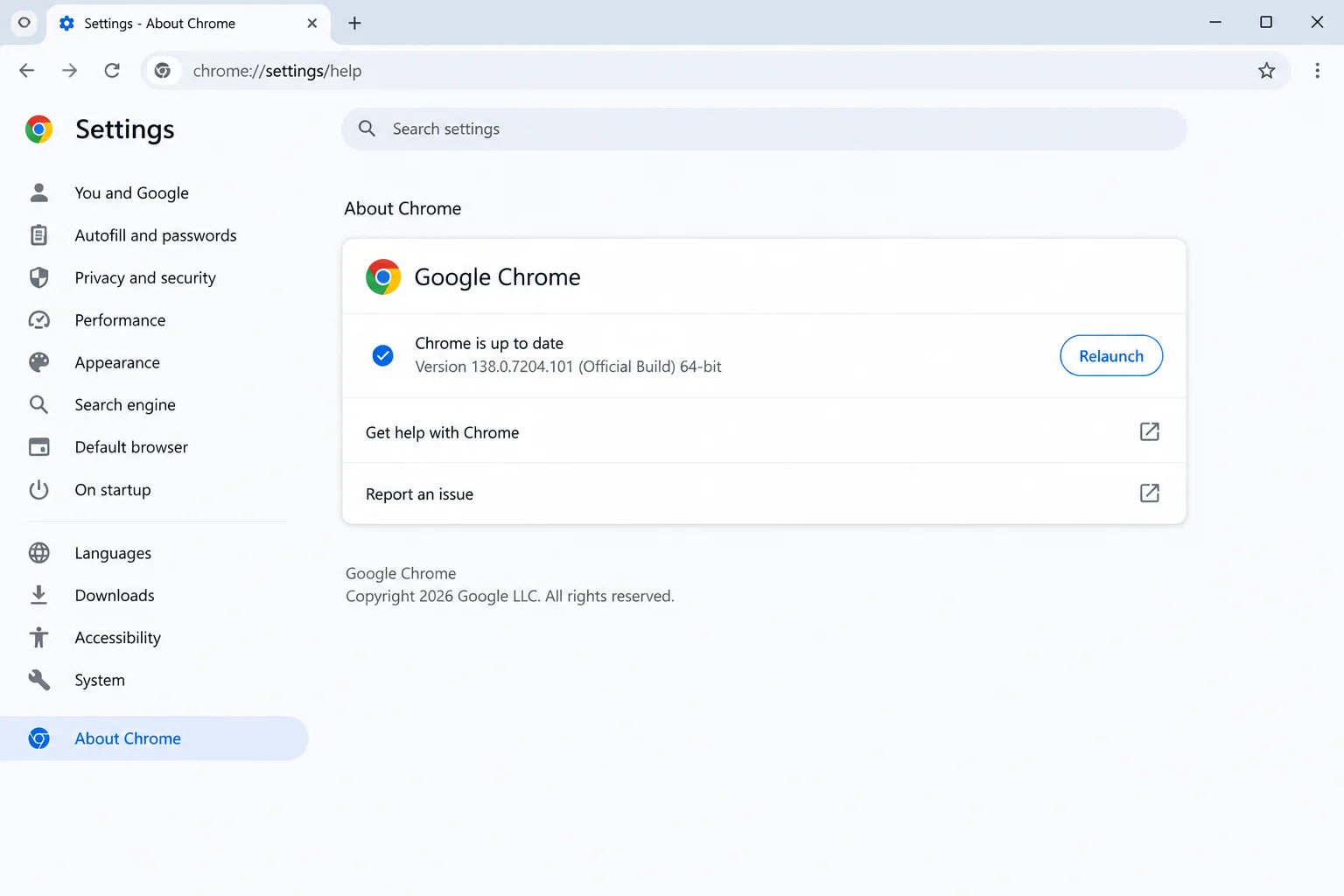
Verify: Gmail loads and the original problem stays gone after a reload. If another browser works while this Chrome profile still fails, a fresh Chrome profile is a useful further comparison.
What Gmail and Chrome Error Messages Mean
| Message or behavior | What it usually tells you | Next check |
|---|---|---|
| “Aw, Snap!” | Chrome’s tab crashed; the message does not identify an extension. | Restart Chrome, update it, then repeat the all-extensions-off test. |
| “This site can’t be reached” | Chrome cannot connect to Gmail. Your connection, network settings, or a wider outage may be involved. | Try another website, connection, or browser. |
| Gmail “Temporary Error” | Gmail could not complete a request. The message alone does not pinpoint the cause. | Reload once. If the error returns, don’t keep retrying: check the status dashboard, then compare another browser. |
| Repeated sign-in prompt | Gmail is not keeping the session you expect. | Test extensions, then review cookie controls and Gmail site data. |
| Blank page or endless loading | Gmail’s page is not finishing correctly. | Disable extensions and reload Gmail before clearing site data. |
Platform-Specific Steps
On Windows
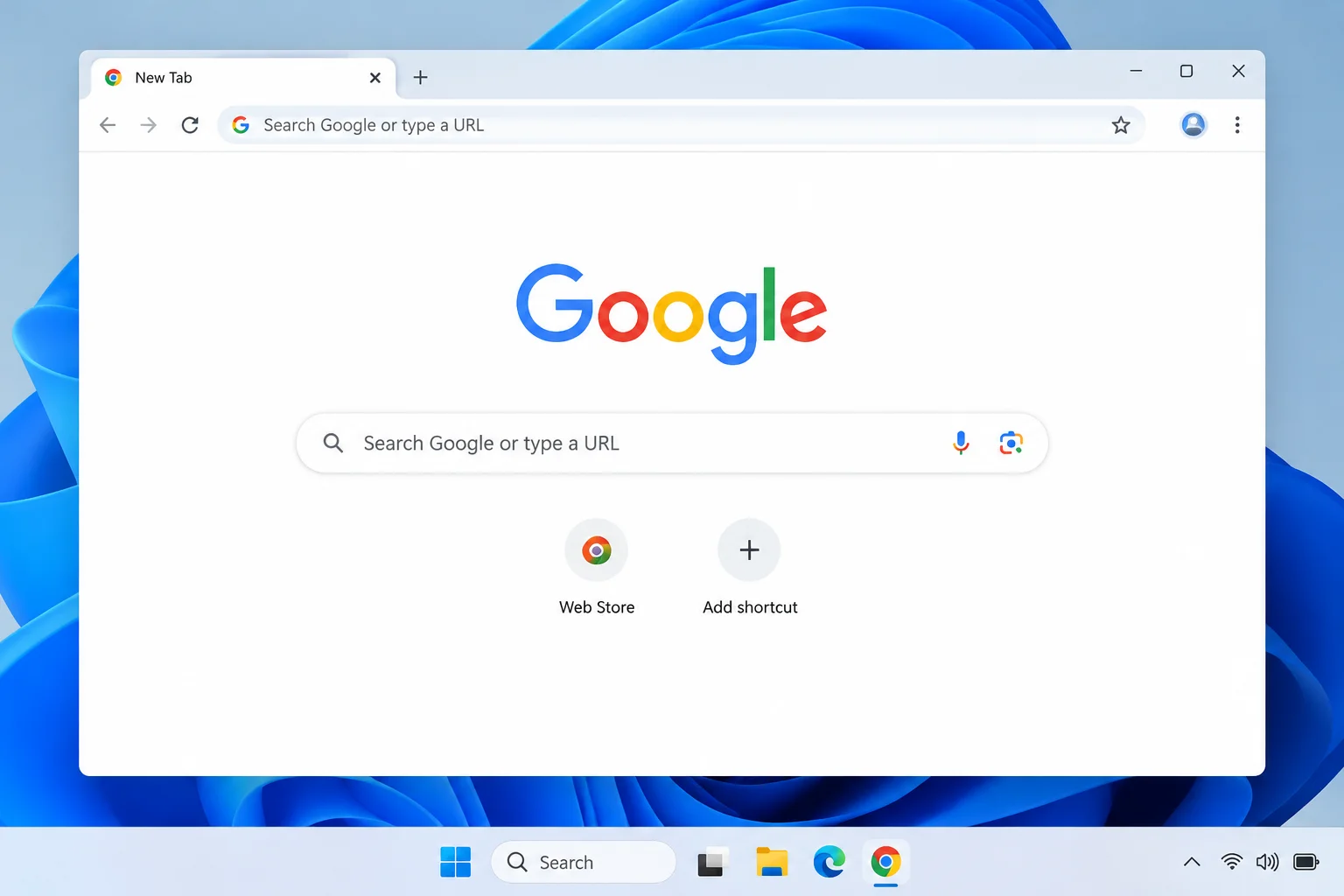
Press Ctrl + Shift + N for the Incognito check. In a normal Chrome window, enter chrome://extensions/ to run the one-at-a-time test. Chrome’s menus and extension controls work the same way whether your Gmail tab is on a laptop or desktop PC.
On macOS
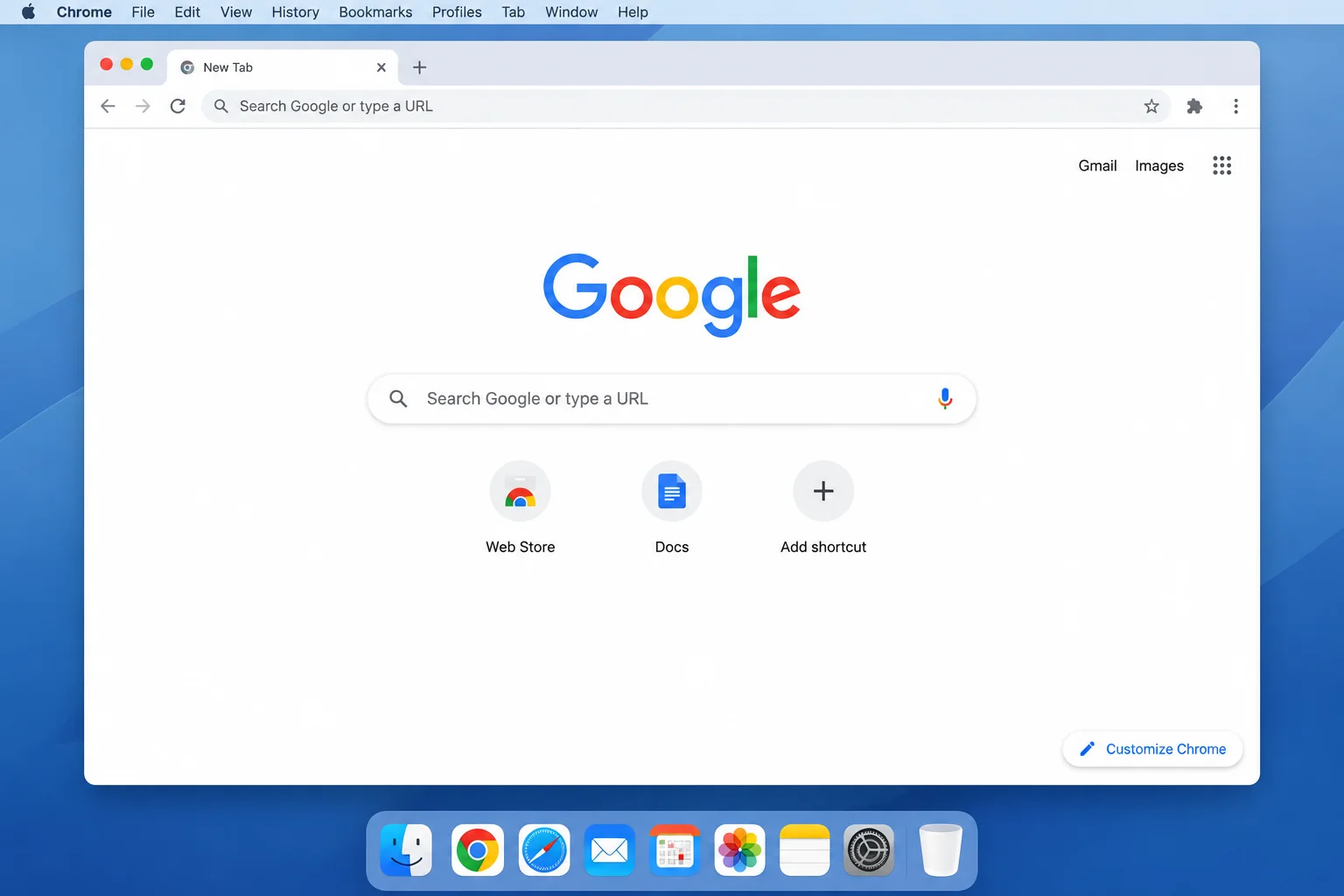
Press Command + Shift + N for Incognito. Use chrome://extensions/ in a normal Chrome window for the extension test. If a guide says to press Ctrl to reload, use Command + R on your Mac instead.
On the Web and Chromebook
The chrome://extensions/ steps apply to desktop Chrome on a Chromebook too. Use Ctrl + Shift + N for Incognito and reload Gmail after each extension change. These checks concern the Chrome profile you are using, so test in the profile where Gmail actually fails.
Settings and Common Mix-Ups to Check
- Turning off the right profile’s extensions: If you use separate Chrome profiles for work and personal browsing, open
chrome://extensions/in the profile where Gmail breaks. - Allowing an extension in Incognito: On an extension’s Details page, check Allow in Incognito. An extension allowed there can affect your Incognito test.
- Pausing an extension for Gmail: Some extensions have their own pause or site allowlist control. If yours does, add
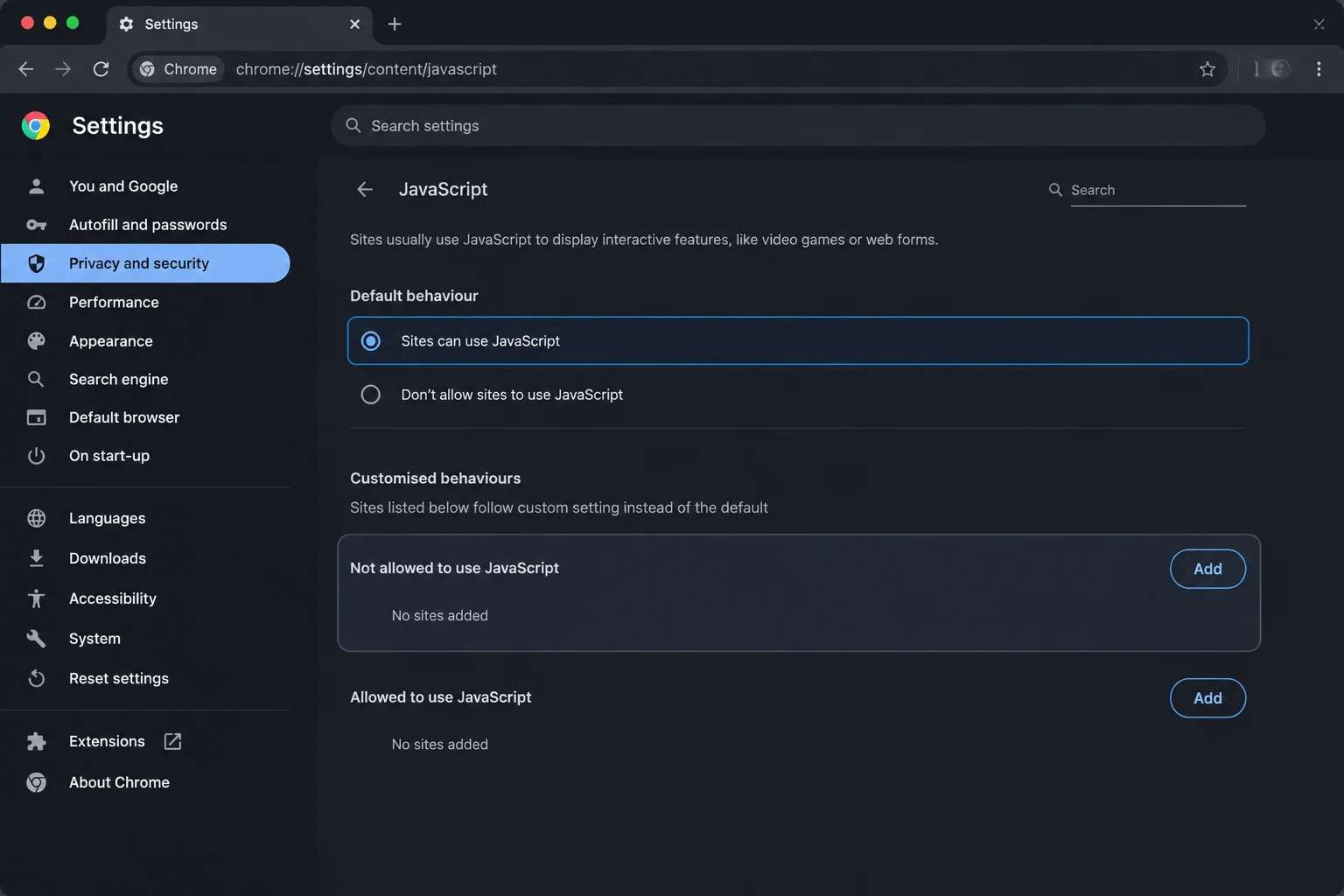
mail.google.comor turn it off for that site, then reload Gmail. The exact control depends on the extension. - Checking JavaScript: Gmail needs JavaScript to run. In Chrome, open
chrome://settings/content/javascriptand check thatmail.google.comis not listed among sites blocked from using it. - Separating add-ons from extensions: Google Workspace add-ons inside Gmail are separate from Chrome extensions. They will not appear as extension cards at
chrome://extensions/.
Once you identify an extension, check its Details page for an update or visit its settings for a Gmail-specific pause option. If neither helps, remove it from chrome://extensions/. You can keep using the rest of Chrome while deciding whether that extension is worth replacing.
Getting Help
If Gmail still fails, gather a few details before asking for help: your Chrome version from chrome://settings/help, the exact error text, whether Gmail works in Incognito, and whether it works with all extensions off. Note the affected Chrome profile and the extension you last enabled before trouble returned. Avoid posting screenshots that expose email addresses or messages.
For Gmail questions, use the Gmail Help Community. For Chrome crashes, extension controls, or browser settings, use the Chrome Help Community. If you use a school or work account, your organization’s IT team may also control Chrome policies or Gmail settings.
Prevention Tips
- Change one extension at a time: After installing or updating an extension, reload Gmail and check the feature you use most. It makes the next mystery much easier to solve.
- Keep Chrome current: Let About Google Chrome finish its update check and relaunch when prompted.
- Use site controls when available: If an extension offers a pause option for
mail.google.com, use it when Gmail needs a clear run. - Keep a backup connection in mind: If Gmail also fails in other browsers, test another network. A USB-C Ethernet adapter or a better-placed mesh Wi-Fi system can help with a weak connection, though neither fixes an extension conflict.
Frequently Asked Questions
If Gmail works in Incognito, does that prove an extension caused it?
No. Incognito usually starts without extensions, but it also uses a separate browsing session. An extension you allowed in Incognito can still run there. Disable all extensions in your normal Chrome window, reload Gmail, and then test them one at a time to get stronger evidence.
How do I find the troublesome extension?
Turn them all off at chrome://extensions/. If Gmail then works, turn on one extension, reload Gmail, and repeat the same action.
Continue until the problem returns. Turn that extension off again and reload to confirm.
Can I keep an extension but turn it off only for Gmail?
Sometimes. Look in the extension’s settings or Details page for a site-specific pause or allowlist option.
Use mail.google.com if the extension supports it, then reload Gmail. Some extensions offer only an on/off toggle.
What if Gmail fails with all extensions disabled?
Check Chrome updates, try another browser, review the Google Workspace Status Dashboard, and consider clearing Gmail’s site data. Clearing site data will require you to sign in again.
Do these steps apply to Gmail on a phone?
They apply to Gmail in desktop Chrome on Windows, macOS, and Chromebook. Chrome extensions in your desktop profile do not run inside the Gmail Android or iOS apps.
Wrapping Up
The Incognito check gives you a clue; the one-at-a-time extension test gives you a likely answer. Reloading Gmail after every toggle is the step that saves the most guesswork. If extensions are cleared, move on to Chrome updates, Gmail site data, and outage checks.
| Step | Action | Applies To |
|---|---|---|
| 1 | Try Gmail in Incognito | Desktop Chrome |
| 2 | Turn off all extensions and reload | Your affected Chrome profile |
| 3 | Re-enable one at a time, reloading after each | Extension testing |
| 4 | Update, pause for Gmail, or remove the likely extension | Confirmed likely conflict |
| 5 | Check updates, site data, and service status | Problems that remain |